GOAL
By default, MUnit runs with the Mule Runtime corresponding to the minMuleVersion element of the mule-artifact.json file. If we have a Mule Runtime patch available, we need a way to get MUnit to override the default version and use the patched version. This can be done either from your Maven configuration or directly within Studio.
NOTE: This option has been available since MUnit Studio Plugin 2.3.0 (Mule 4).
PROCEDURE
If you are running the tests from Maven command line, please follow "From Maven" steps below.
If you are running the tests from Studio, please follow "From Studio" steps below.
This procedure explains in more details the process explained in the MUnit Runtime Patching docs.
From Maven
- Change your pom.xml file to include the runtimeVersion attribute of the munit-maven-plugin configuration as follows:
<plugin>
    <groupId>com.mulesoft.munit.tools</groupId>
    <artifactId>munit-maven-plugin</artifactId>
    <version>${munit.version}</version>
    <executions>
        <execution>
            <id>test</id>
            <phase>test</phase>
            <goals>
                <goal>test</goal>
            </goals>
        </execution>
    </executions>
    <configuration>
        <runtimeVersion>4.3.0-PATCH1</runtimeVersion>
    </configuration>
</plugin>
NOTE: In the example above, the version of the runtime is 4.3.0-PATCH1. This will need to be replaced with the required patched version like 4.3.0-hf3 (earlier patch nomenclature) or 4.3.0-20200925 (Munit distribution ID). You can find the Munit distribution ID for each monthly release from release notes (search for "MUnit distribution ID"). If you have further queries on identifying the Munit Distribution ID please reach out to the MuleSoft Support team. - Open a terminal/bash to the folder of your project.
- Execute "mvn clean package" (or the command line you usually execute for the tests).
- When the tests are run, you can validate the fix after using the Mule Runtime patch version.
From Studio
- By default, in Studio, MUnit runs with the Mule Runtime version used by a specific project. This version can be overridden by specifying the patched runtime version in the MUnit run configurations (Run > Run Configurations…), as shown in the following example:
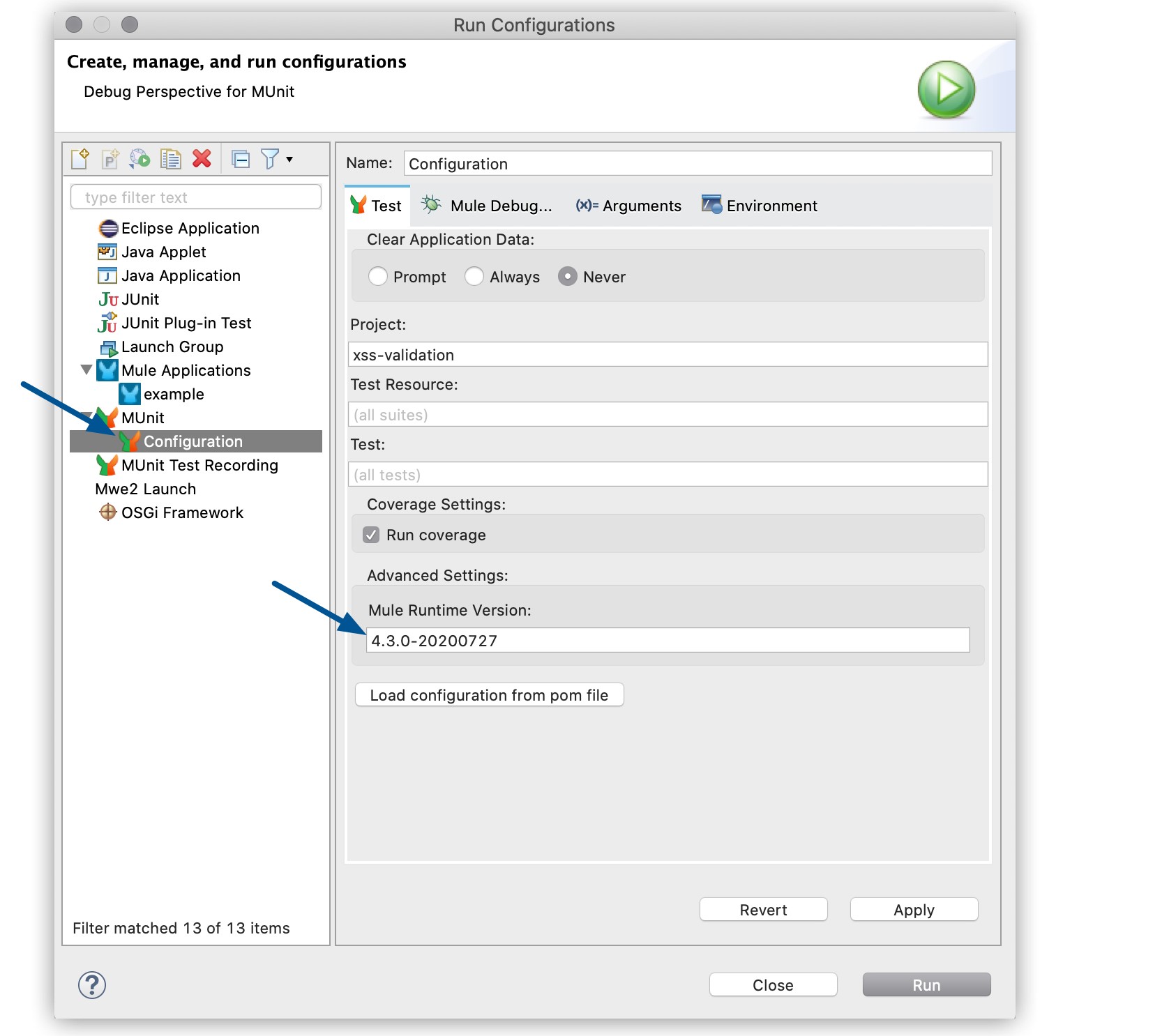
NOTE: In the example above, the version of the runtime is 4.3.0-20200727. This will need to be replaced with the required patched version. You can get this information from the MuleSoft Support team.
If you already set the runtimeVersion attribute in the pom.xml file as shown in the “From Maven” section above, you can click the “Load configuration from pom file” button (shown in the image above). This will automatically populate the version on the Mule Runtime Version field.
- Click on Apply and Run. You should be able to validate the fix after using the Mule Runtime patch version. If you restart Studio, you will need to execute these steps again, as Studio does store this value.