SYMPTOM
Application and Server statuses are shown as
Unknown or
Disconnected in Anypoint Runtime Manager and the message below is seen in the
mule-agent.log file
INFO  2022-05-31 05:46:55,653-0700 [pool-16-thread-1] nnnn com.mulesoft.agent.transport.WSConnection:
Failed attempt to connect nro. 1 to the web socket client at mule-manager.anypoint.mulesoft.com: Connection refused.
Once DEBUG level logging is enabled for
com.mulesoft.agent.transport logging (please follow this article:
How to Enable Wire Logging for Mule Agent), the error below can be observed in the
mule-agent.log file.
DEBUG 2022-05-31 05:46:55,653-0700 [pool-16-thread-1] nnnn com.mulesoft.agent.transport.WSConnection:
java.util.concurrent.ExecutionException: javax.net.ssl.SSLException: Received fatal alert: certificate_unknown
Checking the server in Anypoint Platform -> Runtime Manager shows that the "Certificate expiration date" is an earlier date, therefore it is expired.
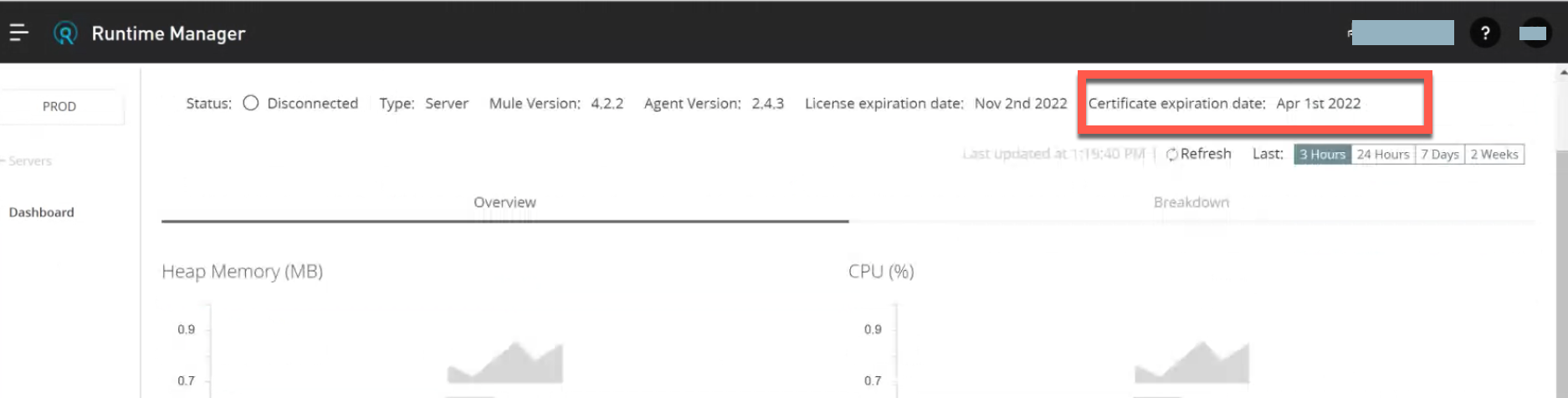
(This screenshot was taken a few days after Apr 1st 2022).
CAUSE
The Mule
Runtime Manager Agent connects with Anypoint Runtime Manager through Mutual SSL Authentication. The key pair for this agent is stored in the
mule-agent.jks file located in
{MULE_HOME}/conf directory. This key pair is valid for two years, originally starting from the pairing of the server with Anypoint Runtime Manager. If this certificate is not renewed before the two years expire, the connection between the
Runtime Manager Agent and the
Anypoint Runtime Manager is
terminated. This might not affect the application running on the server, however, it is recommended to keep the certificate valid all the time.
The validity of the certificate can be verified by following the below steps:
- Obtain the password for the keystore from globalConfiguration > keyStorePassword element in mule-agent.yml file located in {MULE_HOME}/conf directory
- Using the password extracted in step 1, open mule-agent.jks file using an appropriate tool, like KeyStore Explorer or java's keytool
- Validate the expiry date
SOLUTION
Renew the Certificate before it expires
As a best practice, you should always look to renew the certificate before it expires. To do so, please follow the steps displayed in Renew a Certificate before It Expires to renew the certificate.
If the option is greyed out due to an older version of the agent (1.10 or newer is required), please follow the steps for renewing the Certificate after it expires below.
Renew the Certificate after it expires
Please make sure JAVA_HOME is set prior to performing the below steps for your specific operating system, e.g.,
Windows - set in Systems Variables
macOS - export JAVA_HOME=$(/usr/libexec/java_home)
Linux - export JAVA_HOME=/path/to/java_installation
Reference:
Installing the JDK Software and Setting JAVA_HOMEYou can follow the steps displayed in
Renew a Certificate after It Expires to renew the certificate.
Public Anypoint Cloud and Private Cloud Edition 2.1.0 and higher
To renew the validity of the mule-agent's key pair, use the attached self-serve utility jar which would generate a new key store and synchronize with the Anypoint Runtime Manager.
Please make sure that the usage of this tool has been tested in a lower environment and is in line with your organization's change management practices before it is used in the production environment.Steps to renew the mule agent key pair:
- Download the appropriate "agent-certificate-renewer-{version}.jar" from this article (v2.x.x versions are for the Mule 4 agents and v1.x.x versions are for the Mule 3 agents) and move it to {MULE_HOME}/bin
- Ensure the JAR has executable access (In Linux for example, you can provide executable access using chmod +xx agent-certificate-renewer-{version}.jar )
- Stop the Mule Runtime
- Take a backup of the {MULE_HOME}/conf directory
- Use the below command in {MULE_HOME}/bin in order to renew the certificate
- For a non-federated user, use the username and password of an Anypoint non-federated user account and execute the below command
java -jar ./agent-certificate-renewer-{version}.jar -u <username> -p <password>
- For customers with external identity configured, Retrieve and copy the server token: Anypoint Platform > Runtime Manager (Choose same environment as the server is in) > Servers > Add server
And execute the below command
java -jar ./agent-certificate-renewer-{version}.jar -H <ServerToken>
- If your organization is on the US GovCloud control plane, please use the below -r flag:
java -jar ./agent-certificate-renewer-{version}.jar -H <ServerToken> -r us_gov
- If the runtime connects to the platform through a proxy please use the below -P flag:
java -jar agent-certificate-renewer-{version}.jar -u username -p password [-P host port username password]
- If your organization is on the EU control plane, please use the below -r flag:
java -jar ./agent-certificate-renewer-{version}.jar -u <username> -p <password> -r eu1
Output of the execution of the utility would generate info as below
$ java -jar ./agent-certificate-renewer-{version}.jar -u xxxxx -p xxxxxxx -r eu1
INFO: Connecting to Core Services to extract authentication token.
INFO: Connecting to Runtime Manager to request a new certificate.
INFO: Backing up current agent keystore.
INFO: Generating and saving new keystore.
Anypoint Private Cloud Edition 2.0.x and older
- Open a support case and request "agent-certificate-renewer-pce.jar"
- Download "agent-certificate-renewer-pce.jar" and move it to {MULE_HOME}/bin
- Ensure the JAR has executable access (In Linux for example, you can provide executable access using chmod +xx agent-certificate-renewer-pce.jar )
- Stop the Mule Runtime
- Take a backup of the {MULE_HOME}/conf directory
- Use the below command in {MULE_HOME}/bin in order to renew the certificate
java -jar agent-certificate-renewer-pce.jar -O
NOTES
Parameters Information / More help:
- For further help on the renewer, run it with the --help parameter
- If further support is required, please open a support case and include the following details:
- Whether you are using PCE
- If you are on PCE, what version exactly?
- If not on PCE, which Control Plane?
- Environment details:
- Operating System (with version)
- Mule Runtime version
- Mule Runtime Agent version
- The exact version of the renewer that does not seem to work
- Runtime Server ID
- Application ID